ConcordLink Home Page
The home dashboard is your starting point when you log into ConcordLink. It includes a navigation bar, user panel, My Activity feed, recently viewed items, and TrueBI reporting.
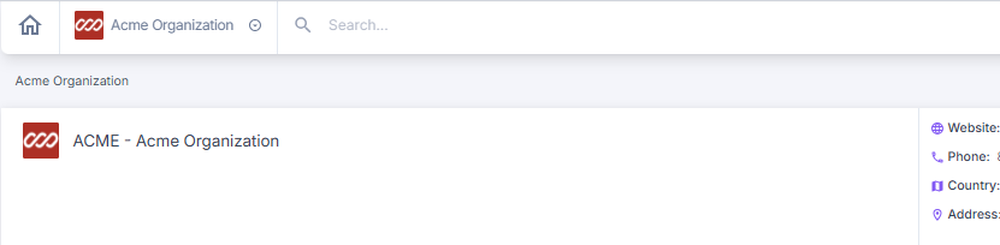
Top navigation bar
The navigation bar runs across the top of the screen and provides quick access to all major areas of the platform.
| Element | Function |
|---|---|
| Home icon | Returns you to the dashboard from anywhere in the platform. |
| Dashboard/Client | Displays the current page name and the active client or organization context. |
| Search bar | Quickly locate clients, obligations, products, or segments by name or ID. |
| Task/checkmark icon | Shows tasks and allows filtering by data metrics. |
| Profile/user icon | Access your profile settings, account management, and logout options. |
User welcome panel
At the top of the page, a welcome card displays your name, avatar initials, and email address. Select Edit Profile to update your display name, password, or multi-factor authentication (MFA) settings. See Introduction to ConcordLink for Agents for more information.
Dashboard home
The main dashboard view shows Recently Viewed items alongside the My Activity feed. Use this page to resume previous work and track recent actions at a glance.
My Activity
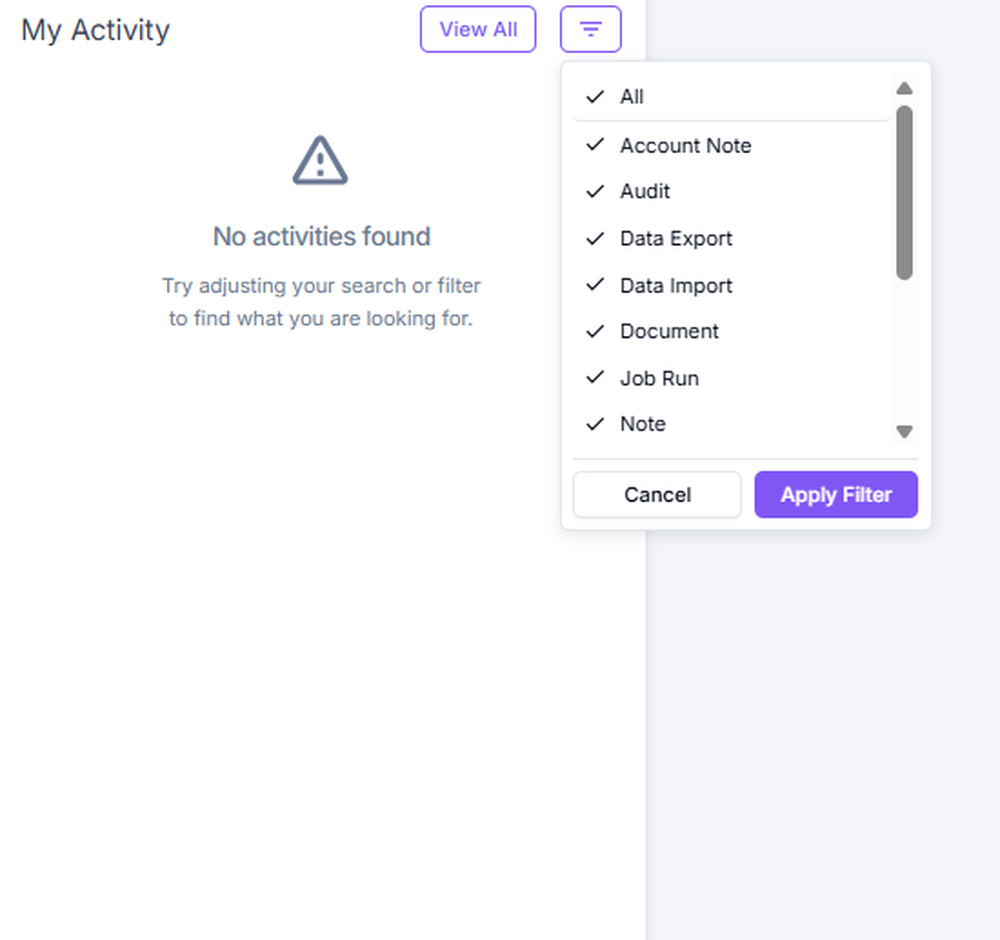
The My Activity panel on the right side of the page provides a real-time feed of actions taken within ConcordLink. You can filter by data export, job run, notes, and other activity types.
Recently viewed items
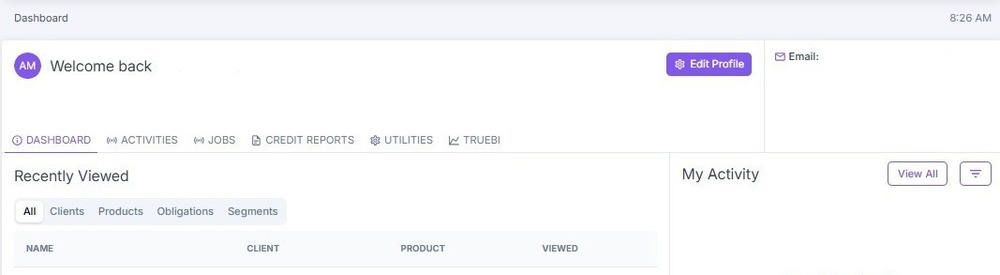
The recently viewed section displays all recent activity, including recently viewed clients, products, obligations, and segments. Each record shows the name, client, and a timestamp. Use this section to resume previous work and cross-reference records.
Activities
The Activities section is the central log for all notes, system changes, and account activity on an obligation. Access it from the second tab on the dashboard. You can view information in list or table format. This section also functions as an audit trail.
Filtering activities
| Filter | Description |
|---|---|
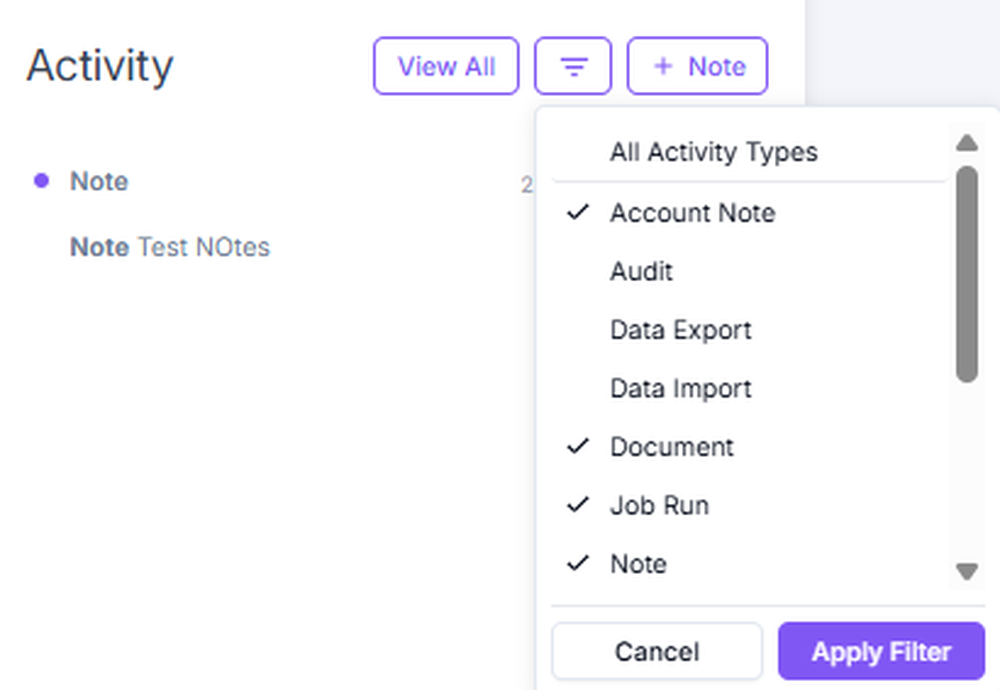
| Activity types | Located next to the view selector. Filters by notes, documents, payments, statements, transactions, tasks, audit, data imports/exports, and script runs. Select All to quickly select or deselect all types. |
| Date range | Enter a start and end date to search within a specific time period. |
Activity details
Some activity types contain additional detail. Look for the down arrow on the right side of an activity entry; its presence indicates that more information is available. Select the arrow to expand the entry and view full details.
Field change audits
ConcordLink tracks every change made to an obligation and maintains a complete audit trail. Each audit entry records the original field value, the new value, when the change was made, and who made it. This is especially useful when a borrower questions an account modification or when you need to trace changes made during a servicing issue.
Adding a note
You can add notes directly from the Activities page. Notes can be pinned for quick visibility or set with a follow-up reminder.
TrueBI
TrueBI is ConcordLink's built-in business intelligence reporting tool. It lets you configure and view reports at the client level, providing data insights across portfolios. TrueBI reports are organized by client group and can be customized to support a variety of reporting needs.
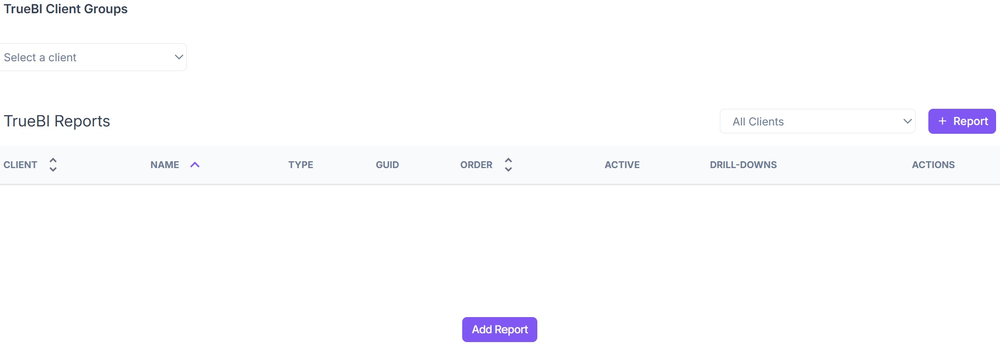
TrueBI reports table
The TrueBI Reports section displays all configured reports. Filter by client using the All Clients dropdown in the top-right corner. The table includes client information, report name, report type, a unique system identifier (GUID), display order, active status, drill-down availability, and available actions.