Introduction to ConcordLink for Agents
Learn what ConcordLink is and how to get started.
What is ConcordLink?
ConcordLink is Concord's modern, API-first loan servicing platform that consolidates portfolio operations and data into a single, secure environment. Built for originators, asset acquirers, and lenders, it integrates seamlessly with existing systems, scales with growing complexity and volume, and is highly configurable to meet portfolio-specific needs.
Unlike other solutions, ConcordLink automates key servicing functions, including payment processing, statement generation, and fee management, reducing manual work and saving time. All automated activities are fully auditable, with embedded tools to track accounts and payments. The platform operates in real time and includes a modern, mobile-ready portal for clients and their customers.
Main advantages of ConcordLink
| Capability | Description |
|---|---|
| Obligation servicing | Full lifecycle administration of any type of receivable including loans and leases on a single platform. |
| Configurable business logic | Scripting engine for waterfalls, late fees, and hardship workflows. No deployments required. |
| Reporting and analytics | Real-time portfolio visibility with a query builder, audit trails, and exportable reports. |
| Integrations and data exchange | API-first with full documentation. Built-in ETL via API, SFTP, or upload. |
| Borrower self-service | Branded portals for payments, account lookups, and document access. Mobile-ready and available 24/7. |
How ConcordLink is different
In ConcordLink, the business rules that govern how a portfolio behaves are customizable scripts. This means:
- A client or agent can navigate to their product's scripts and read exactly what the late fee script, interest calculation, or payment waterfall does without a support ticket.
- Changes to scripts are tracked and visible in the audit history.
- Transparency gives clients ownership and visibility over how their portfolio operates.
Getting started in ConcordLink
Set up an account
- Go to link.concordapps.com.
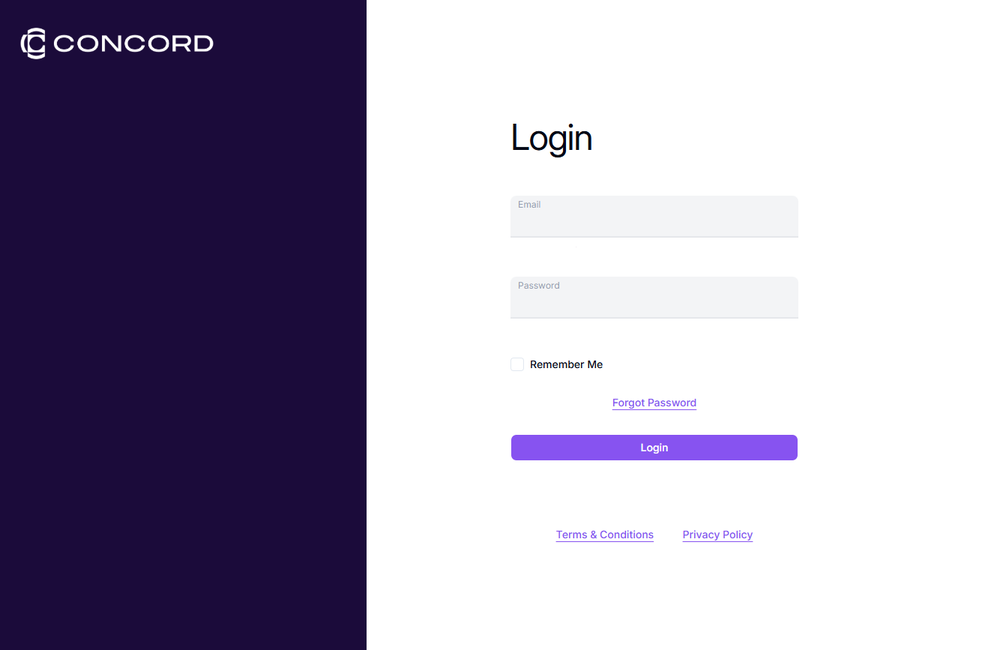
- If shown a cookie notification, select Accept All Cookies.
- Select Forgot Password.
- Enter your email address and select Send Reset Instructions.
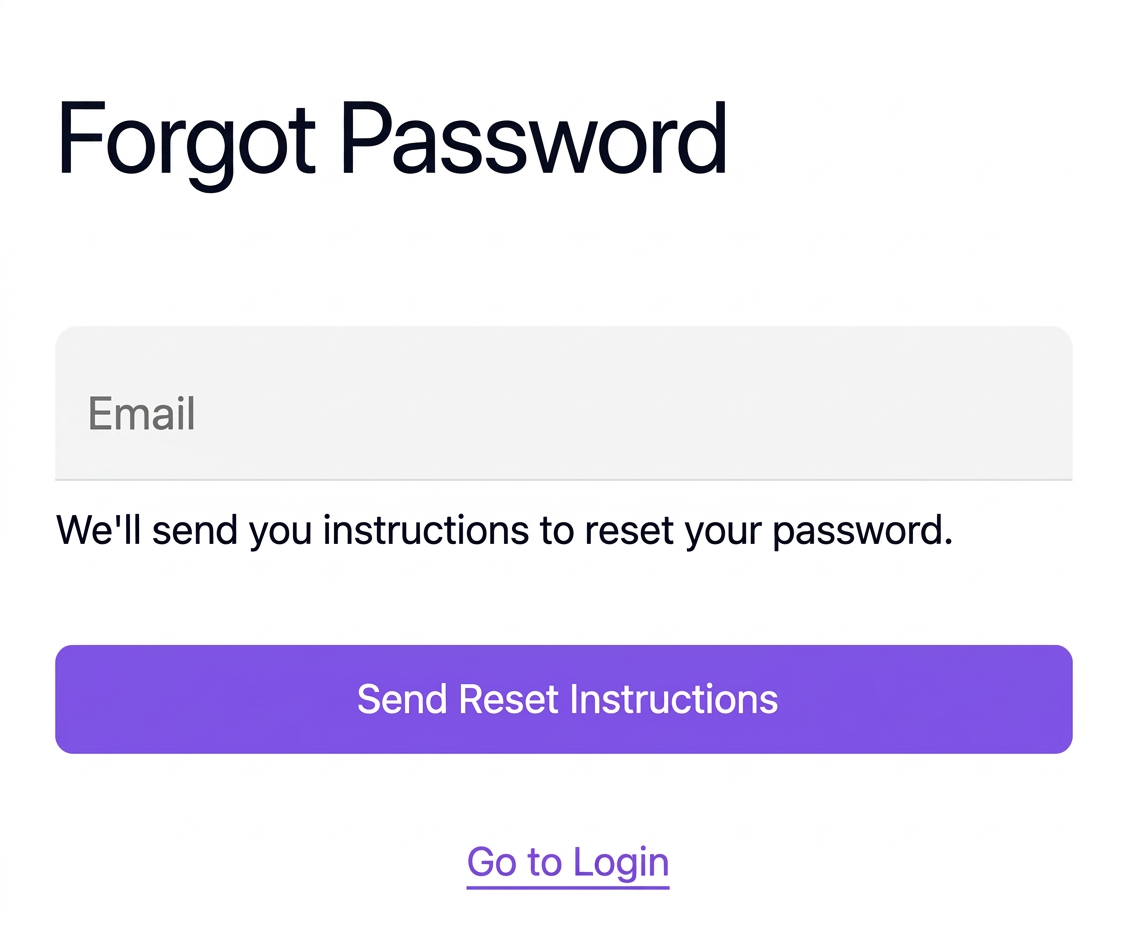
- Follow the link in the password reset email to set your password.
- Log in using your registered email address and password.
Once a password has been set, log in using the registered email address and password.
Profile setup
- Select the person icon in the top-right corner of the navigation bar to open the Update Profile page.
- Update your Display Name by clicking into the field and editing the text.
- Your Email is pre-populated and used for system notifications and communications.
Password
- In the Password section, enter your Current Password.
- Enter your New Password.
- Re-enter the new password in the Confirm Password field.
- Select Update to save the changes.
Multi-Factor Authentication (MFA)
At the bottom of the profile page, select Enable MFA to add an extra layer of security to your account. Once enabled, the system will prompt for a second form of verification each time you log in.