Customer Service Tasks
Agents assist and guide customers through many tasks based on customer portal capabilities. The following sections are a step-by-step guide to common customer service tasks.
Account access and login issues
You can help customers log in to the portal using their registered email address and register multiple email addresses to a single account.
Resetting passwords
- Confirm the customer is using the correct portal URL and login credentials.
- Send a reset email to initiate a password reset directly to the customer's inbox. See Introduction to ConcordLink for Agents for information on the reset email process.
- If the customer doesn't receive the reset email, verify that the email address on file is correct.
- If the reset doesn't work, check whether the customer's access has been disabled.
- If the portal itself is unresponsive or displaying errors, escalate to an administrator. It may be a broader system issue.
Changing the portal login email
Customers can now change their portal login email to another of their own contact email addresses directly from the portal. The new login email must already be one of the customer's contact email addresses on the account. If a customer wants to sign in with an email that is not yet on file, first add it as a contact email (see Updating contact information below), then have them switch their login email to it.
Account location issues
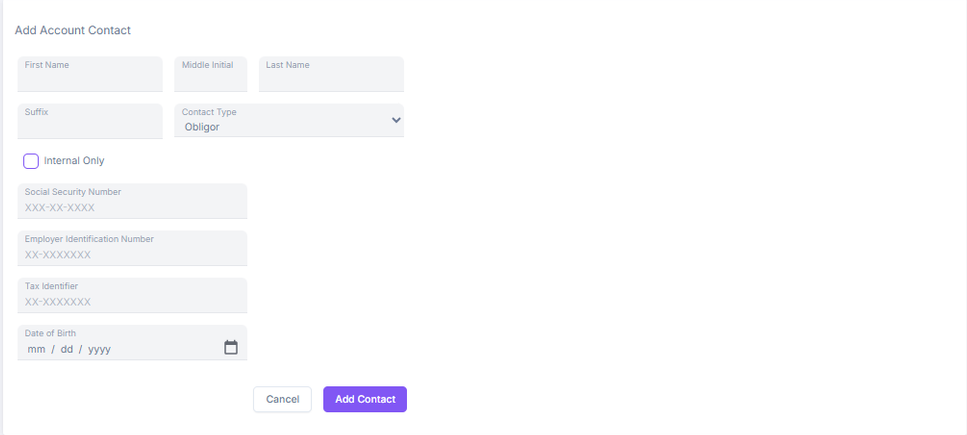
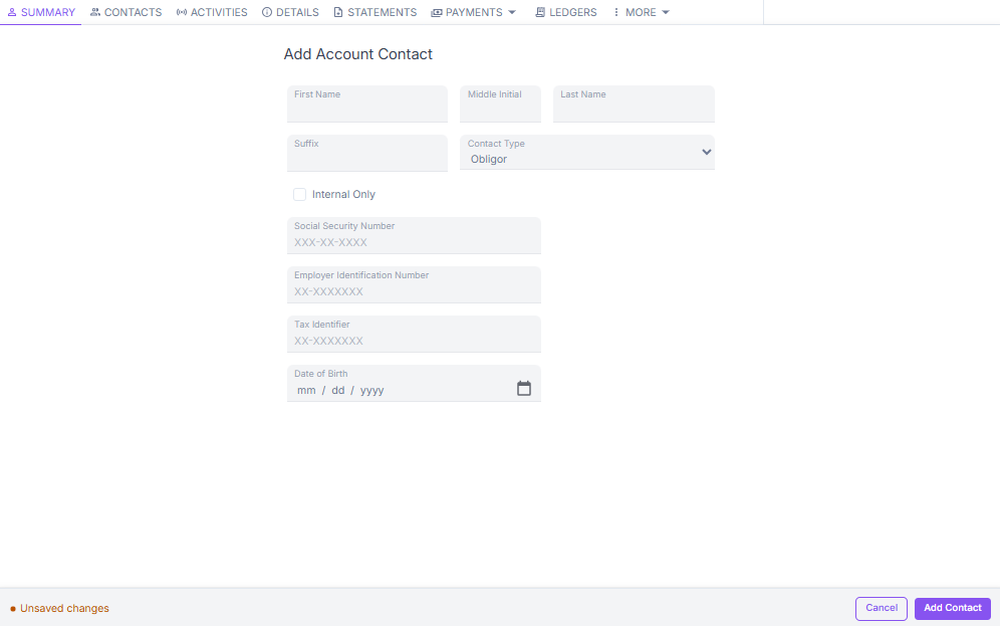
If an obligor's account cannot be found or an error occurs when performing an action, verify the primary obligor is correctly assigned and add a co-obligor from the Contacts sub-tab as shown below.
Removing an account
Portfolio and product assignments are managed at the administrative level. Contact a supervisor or system administrator to add or remove an account from a portfolio. Changes of this nature may require a status update and a supporting note on the account. Contact Concord for further questions.
Portal self-service actions
Customers can now run designated "I want to…" self-service actions directly from the portal. These are the specific self-service actions enabled for the portfolio. The customer selects the action they want and the portal walks them through it, without needing to call an agent.
Which actions appear depends on what has been configured for the portfolio. If a customer asks about an action they don't see, confirm whether it has been enabled for their portfolio before troubleshooting.
Updating contact information
- Navigate to the customer's account by searching for the obligor or obligation. Verify the account number, the obligor's name, and account details at the top of the page.
- Go to Contacts and select the edit icon. Update phone numbers, email addresses, mailing addresses, and notes from this page.
- If no information is present, select + Add. Designate the user as the primary person on the account to make the contact information the default.
Identifying account information
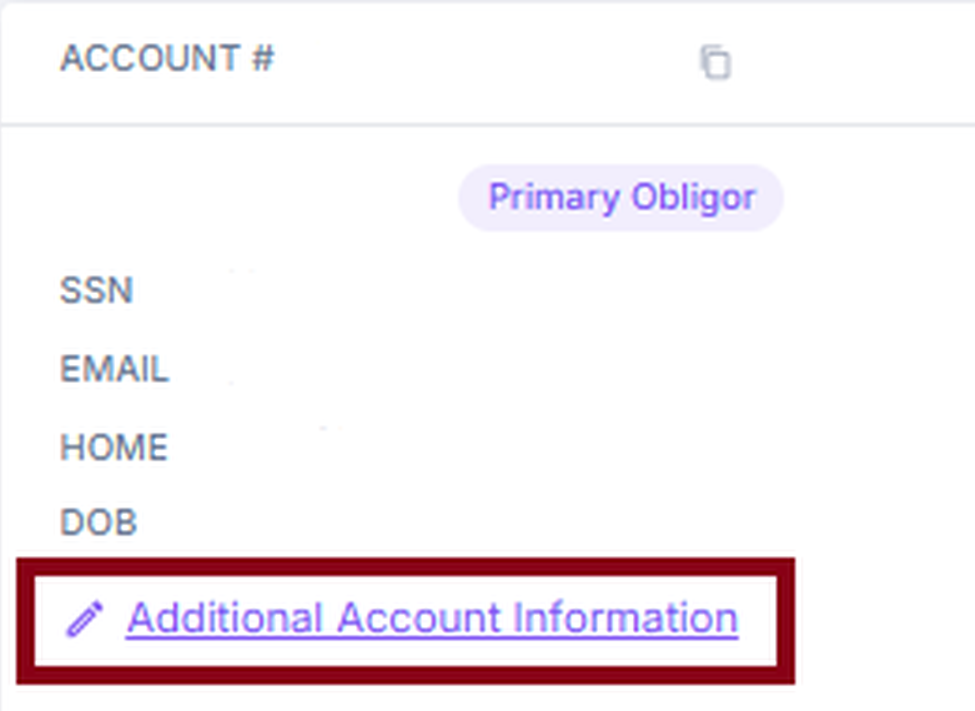
- Open the account and view the account overview or summary panel.
- Navigate to the personal information, obligor details, or profile section for additional detail.
Quick navigation reference
| Task | Where to go |
|---|---|
| Search by name, phone, or email | Go to Accounts, search for the information, and select the result. |
| Find SSN or date of birth | Go to the profile under Obligor Details. |
| Find loan details | Select the Loan Details tab. |
| Process a payment | Go to the Payments tab and select Process Payment. |
| Waive a fee | Navigate to the Fees section, select a fee, and choose Waive. |
| Add a note | Go to the Notes panel on the right side of the page. |
| Set up or deactivate autopay | Go to Autopay and Recurring Payments. |
Communication preferences
Communication preferences control how and when ConcordLink contacts the obligor.
Setting contact methods
- Open the obligor's account.
- Navigate to the Communication Preferences, Contact Preferences, or Obligor Preferences section.
- Select the toggles or checkboxes for calls, email, or text.
- Save all changes.
Setting contact time preferences
- In the same Communication Preferences section, locate the Best Time to Contact or Contact Schedule option.
- Select the obligor's preferred days and times to be contacted.
- Note the obligor's time zone if applicable, and save.