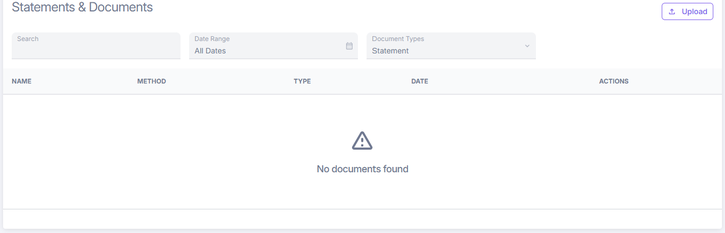
Statements and Documents Tasks
The following sections provide guidance on how ConcordLink generates statements and how to view, upload, and manage documents on a customer account.
Statement generation
ConcordLink automatically generates statements on a recurring schedule, typically 15–21 days before the installment due date. When a statement is generated, a corresponding installment is created showing the amount due for that billing cycle.
| Balance type | Definition |
|---|---|
| Current Due | The total of any unsatisfied installments whose due dates are today or in the future. |
| Past Due | The total of any unsatisfied installments with due dates in the past. |
Recent statement and installment behavior changes
- Do not receive statements accounts are skipped. Accounts flagged to not receive statements are now correctly excluded during statement generation, so a suppressed account no longer has a statement produced for it.
- Installment generation is separated from statement suppression. Generating installments and suppressing statements are now independent. Unfunded or paused accounts no longer receive retroactive bills as a side effect of statement handling.
- New obligations auto-derive their next statement date. A newly created obligation now automatically derives its next statement date, so statements begin on schedule without it being set manually.
If a customer reports not receiving a statement, go to the Activities tab, check for generated statements, and verify the customer is set to receive them in the system. If the account is intentionally flagged not to receive statements, that suppression is expected behavior. If the customer wants to change delivery preferences, direct them to the Communication Preferences tab to toggle delivery options.
Failure reporting
Statement and installment generation jobs now report failures accurately. If nothing was produced, the job surfaces the failure rather than reporting "completed, 0 errors." When checking on a generation issue, trust the reported outcome: a completed job with a real error count reflects the actual result, and a failing job will now show as failed instead of silently producing nothing.
Viewing customer statements and documents
- Navigate to Statements on the customer's account.
- Use the Document Types dropdown to filter by document type, documents, statements, or letters, or select All Documents to view everything available.
- Select View to open a document.
- Download or print the statement or document as needed.
Uploading a document
- Select the Upload button in the top-right corner of the Statements and Documents page.
- Choose the file to upload and save.