Obligations Page
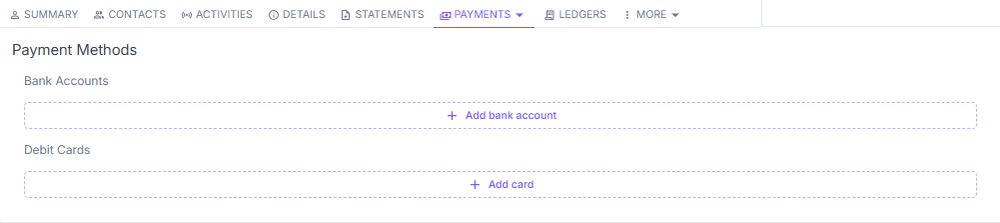
This page contains all information related to an obligation, including the obligor's contact information. A navigation bar provides access to all account management tabs: Summary, Contacts, Activities, Details, Payments, Ledgers, and More.
Actions menu
The Actions menu provides agents with access to critical account-level tasks:
| Action | Description |
|---|---|
| Add a task | Create a task for follow-up or escalation. |
| Recalculate a balance | Trigger a manual balance recalculation. |
| Create or order documents | Generate statements, letters, or other account documents. |
| Request a payoff quote | Calculate and provide the current payoff amount. |
| Confirm paid-in-full status | Mark an obligation as fully paid. |
| Surepay Solicitation | A letter sent to borrowers soliciting enrollment in the Surepay automatic payment program. |
| Return Payment Notice | A notice generated when a borrower's payment has been returned (e.g., due to insufficient funds or a rejected ACH). |
System behavior
While agents don't need to memorize all the underlying logic of the system, it's helpful to understand the key system behaviors.
| Behavior | Description |
|---|---|
| Recalculate Balances | Certain fields are automatically updated by ConcordLink based on system logic. |
| Interest Fields | Accumulated interest and the interest processed date are updated as payments are made or interest accrues. |
| Delinquency Status | Automatically updates based on unpaid installments. |
| Write-Offs | If a small balance remains due to overpayment or underpayment, ConcordLink may automatically write off the balance and mark the obligation as Paid in Full. Write-offs are defined by client and product. |
These values are not manually edited and may change dynamically. Always trust what the system displays.
Rules behavior
ConcordLink applies fees automatically based on client-configured rules:
| Fee Type | When Applied |
|---|---|
| Late Fees | Charged when installments are not paid by the end of the grace period. |
| NSF/Return Fees | Triggered when a payment fails due to insufficient funds or a returned payment. |
| Fee Rules | Amounts, grace days, maximum fees per period, and other rules vary by client and product. Fees may be configured as a percentage, fixed rate, or threshold method. |
Summary tab
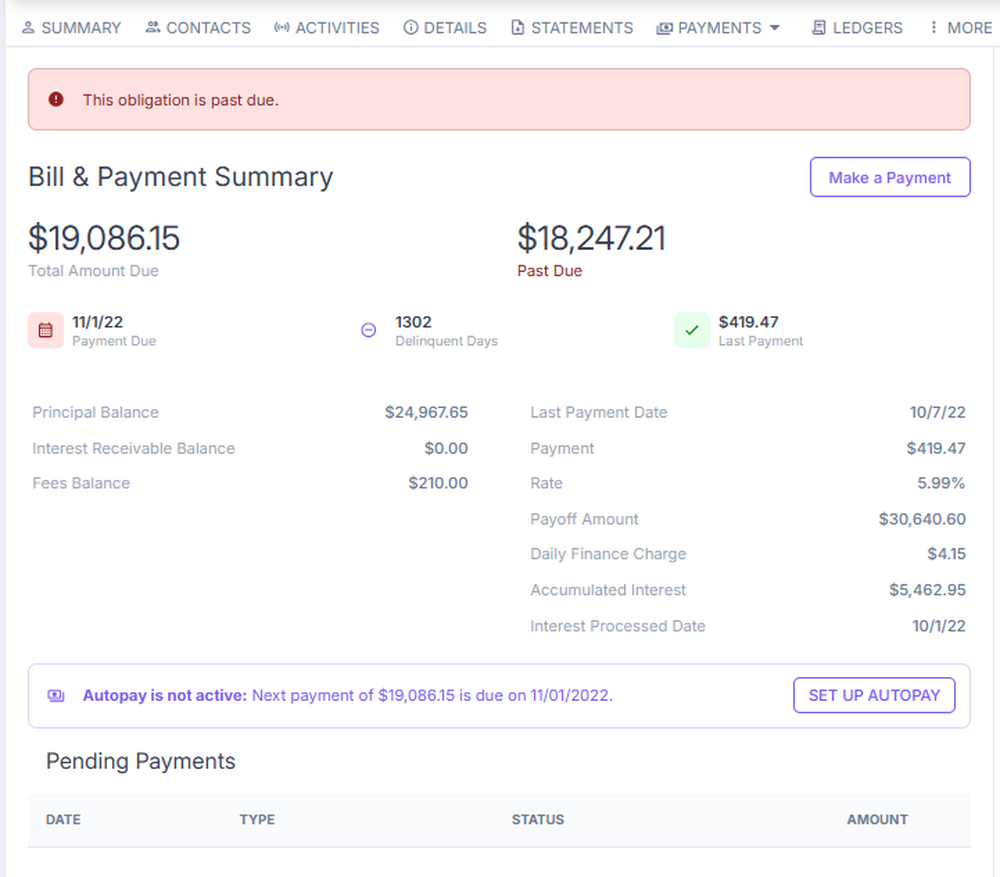
The Summary tab is the default landing tab when opening an obligation. It displays the bill and payment summary, including the amount due, past-due balance, payment due date, delinquent days, key financial figures, pending payments, and autopay status.
Contacts tab
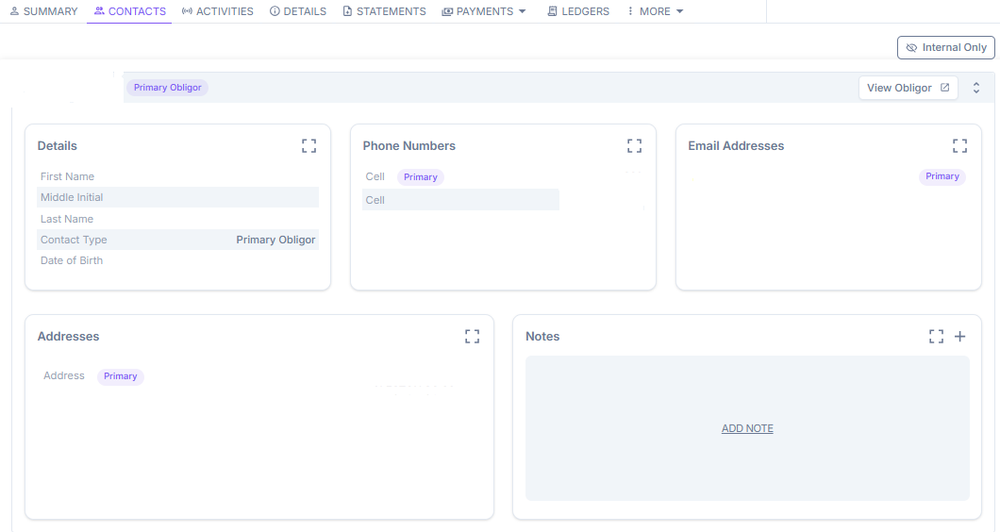
The Contacts tab displays all contacts associated with the obligation, including the primary obligor and any co-borrowers or related parties. Contact details, such as name, phone number, email address, last four digits of the SSN, date of birth, and mailing address, are managed within this section. The tab includes three sub-tabs: Account Contacts, Communication Preferences, and Customer Portal.
To add a contact, select Add Account Contact. Fill in the required fields and select Add Contact to save.
Activities tab
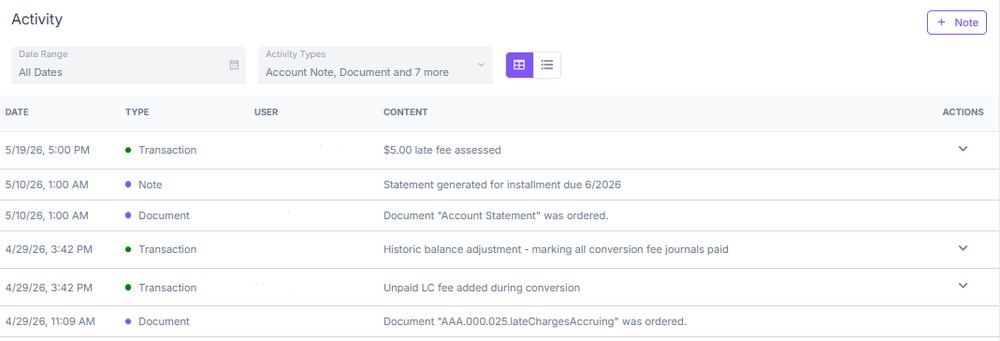
The Activities tab provides a full log of all activity on the account. Activity types include notes, status changes, communications, and system events. Agents can filter the log, view all activity, or add a new note directly from this section.
Details tab
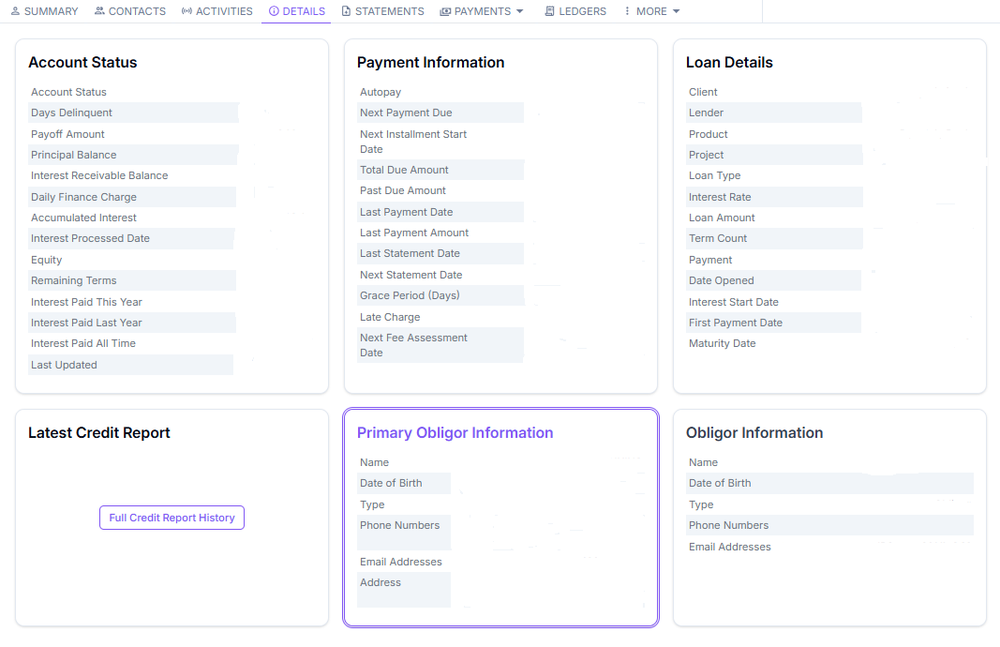
The Details tab contains detailed account-level information and configuration fields specific to the obligation. Agents can view loan terms, rates, and account attributes not displayed in the Summary tab.
Statements tab
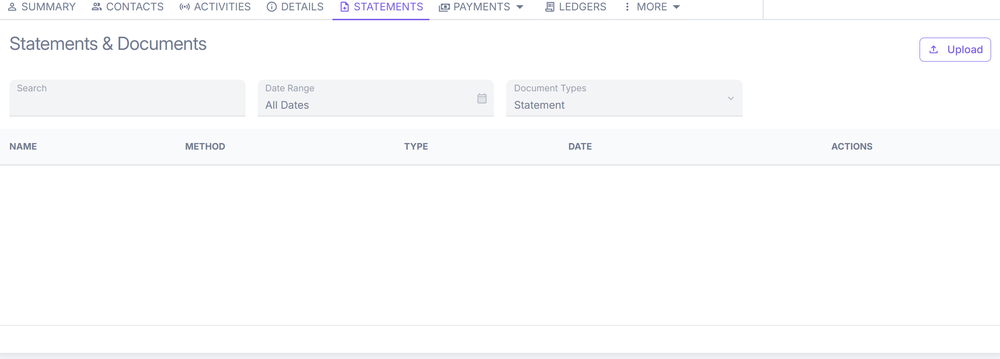
The Statements tab provides access to all generated statements for the account, including billing statements and other documents issued to the obligor over time.
Communication types
| Type | Description |
|---|---|
| Statement | A periodic summary of account activity over a defined billing cycle. Includes opening/closing balances, credits, debits, fees, interest charges, and the minimum payment due. |
| Transaction | A periodic summary of account activity including balances, credits, debits, fees, and interest charges. |
| Marketing | Outbound communications to promote products, services, or offers. Governed by opt-out and compliance requirements. |
| Collections | Notices sent to customers with past-due accounts. Follow a defined escalation sequence and must comply with FDCPA regulations. |
Print status tracking
Physical mail print orders are managed through CommFlow and Nordis:
| Status | Meaning |
|---|---|
| Ordered | ConcordLink has generated the communication. |
| Delivered | Sent to the printer. |
| Fulfilled | Printed and mailed. |
If an obligor reports not receiving a document, confirm the delivery method and verify that the account status does not restrict statement generation.
Submitting documents
Documents are commonly uploaded in the Statements section:
| Document | Purpose |
|---|---|
| Proof of Payment | A document that confirms a financial transaction has been completed. |
Payments menu
The Payments dropdown menu covers all payment-related functions, including account history, payments, making a payment, autopay, and payment methods.
Account statuses
| Status | Description |
|---|---|
| Active | The account is serviced with activity occurring. Does not indicate good/bad standing. |
| Delinquent | One or more payments are past due. |
| In Grace Period | The payment is late but within the grace period window. |
| Paid Off | The loan has been fully paid. |
| Charged Off | The account has been written off as a loss. |
| Closed | The account is no longer active. |
| Bankruptcy | The obligor has filed for bankruptcy protection. |
| Deferred | Payments have been deferred or postponed. |
Account history
The account history shows agents all past charges, amounts, interest, fees, new balances, and due dates.
Payments table
The Payments table displays all payments made, including the date, type, amount, payment method, status, errors, and available actions. Agents use this tab for quick reference and to filter payments by status.
Make a payment
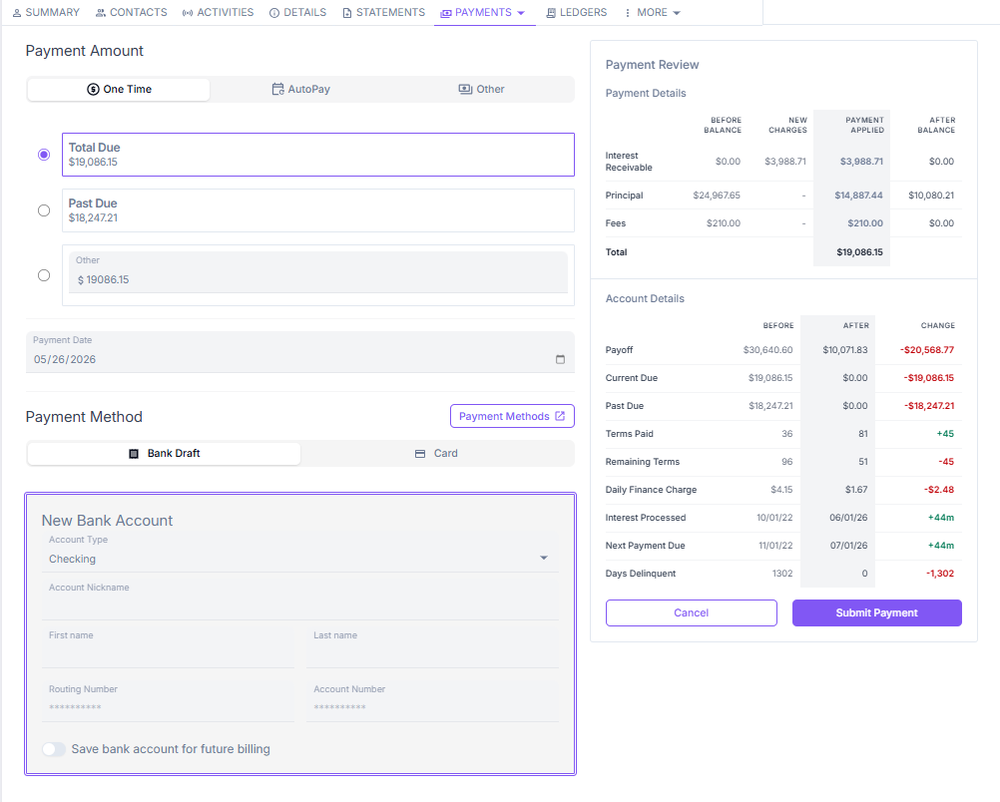
This section manages payment actions. Agents and customers can make one-time payments, set up autopay, and change the payment method. The right panel displays the payment review and account details.
Autopays
This section allows customers or agents to add an autopay method.
Payment methods
This section is where agents or customers can add a bank account, debit card, or credit card, depending on the allowable payment methods for the portfolio.