Collection Tasks
As part of collections, agents change obligation statuses, work past-due accounts, manage escalations, and use the Collections queue to systematically contact and resolve delinquent accounts.
Collections dashboard
ConcordLink includes dedicated Collections dashboards. These dashboards provide a real-time summary of delinquent accounts, queue activity, and portfolio collections health. To access the Collections dashboard, navigate to the client homepage or product toolbar and select Collections.
Working Collections
The Collections queue is the primary tool for working delinquent accounts in a structured, strategy-driven workflow.
- Strategies define the rules for how accounts are prioritized and assigned, based on days delinquent, balance, product type, or other criteria.
- Assignments is where agents work accounts from their assigned work queue.
- Teams are assigned to specific work queues, routing the right accounts to the right group of agents.
Working accounts in the queue
- Log in and navigate to the Collections section from the Collections menu.
- Select your assigned work.
- Open the next account in the queue. Review key data: days delinquent, balance, contact information, and case history.
- Contact the obligor through phone, email, text message, or the online portal.
- Record the outcome in notes, set follow-up tasks, and update the obligation status as appropriate.
- Move to the next account in the queue.
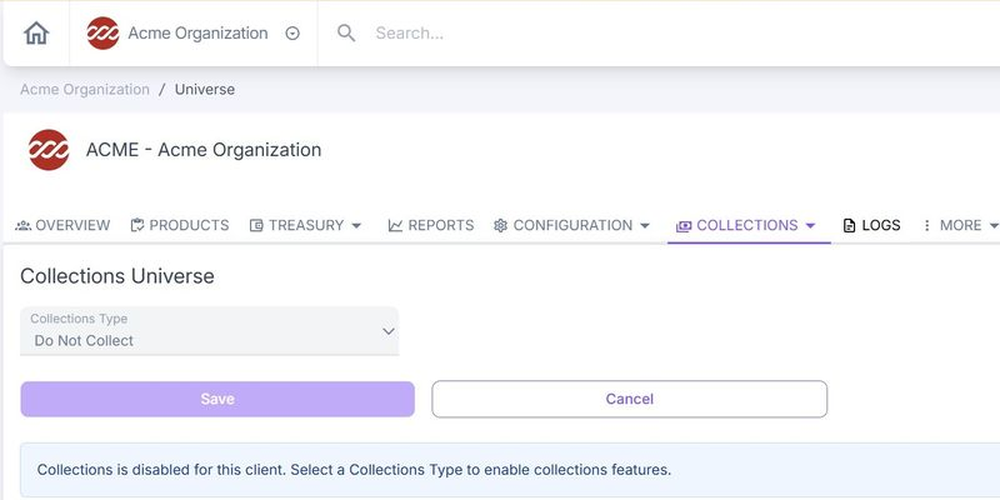
Collections Universe
The Collections Universe setting controls whether collections features are enabled for a client. Navigate to Collections > Universe to configure the Collections Type. If set to Do Not Collect, collections features are disabled for that client.
Escalations
Hardship requests
- Navigate to the Activities tab on the obligor's account and add a new note.
- Document the details of the hardship request, including the nature of the hardship, what the obligor is requesting, and any relevant dates.
- Set a follow-up date on the note.
- Submit a Customer Request Form to escalate the request to the appropriate team at your organization. The Customer Request Form is sent via email to the applicable Contact Center operations team.