Navigation, Setup, and Administrative Tasks
The following sections provide guidance on searching in ConcordLink, managing notes and logs, reviewing audit history, and configuring portal settings.
Searching in ConcordLink
The search function lets you quickly locate obligations, obligors, clients, account numbers, and other records without navigating through the full platform. Access it from the search bar at the top of any screen.
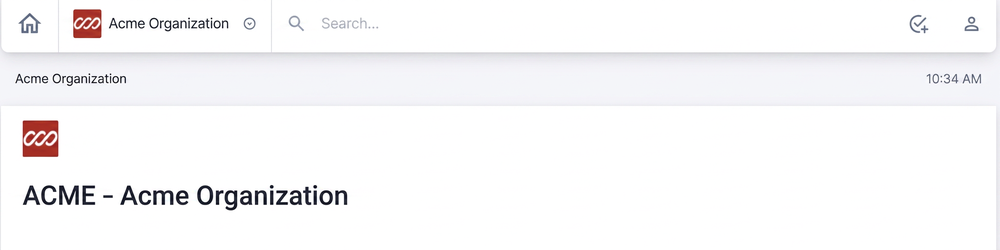
Using the search bar
- Select the search icon in the top navigation bar or place your cursor directly in the search bar.
- Type a search term. Results appear automatically as you type, no need to press Enter.
- Look for the obligor's name, phone number, email address, or other identifying information.
- Select a result to navigate directly to that obligation or record.
Partial entries return all matching results across names, account numbers, and phone numbers. Searching by account number, phone number, or last name returns the most targeted results.
Notes
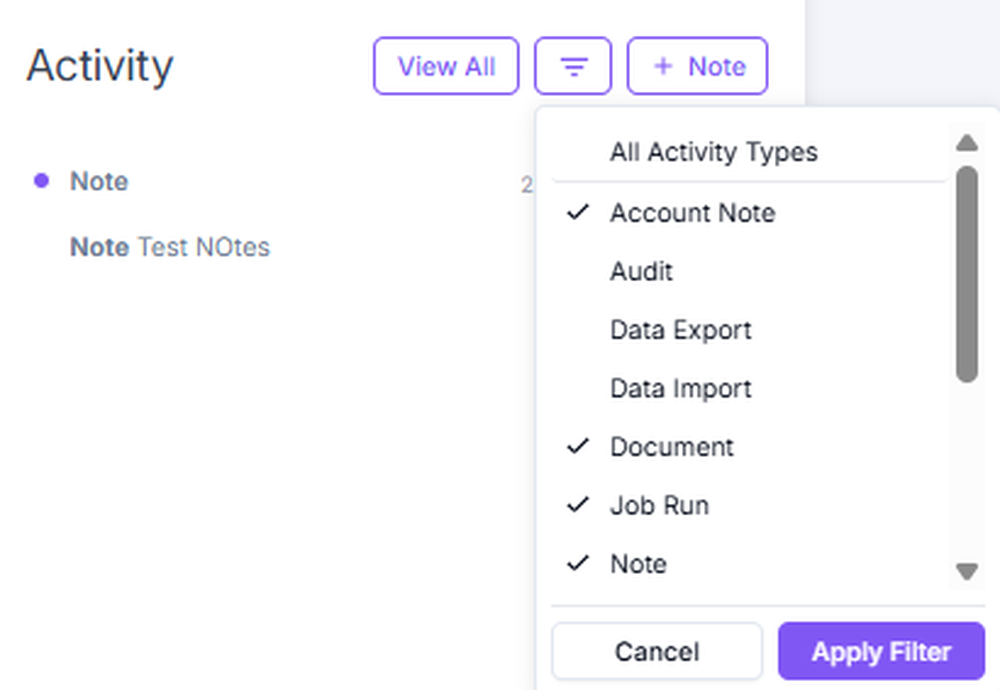
Notes are added and saved on the obligation page. Pinned notes persist at the top of the navigation pane. Notes are also filterable under Activities.
Adding a note
- Locate the note card on the right side of the account.
- Select Add Note or the + icon in the top-right corner of the card.
- Enter the note text in the field provided.
- If it's a payment note, add the resolution, reason for delinquency, follow-up date, or other important details.
- Save the note.
Audit history
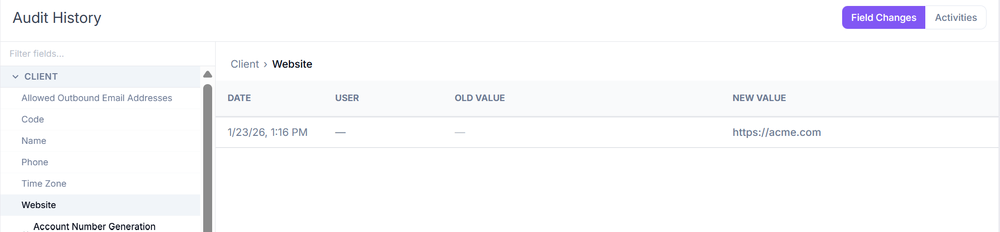
Audit History tracks user-made changes; Logs track system-made changes. Two viewing modes are available:
| Mode | Shows |
|---|---|
| Field changes | A history of changes made to specific data fields. |
| Activities | A log of actions and events associated with the record. |
Navigating to audit history
Audit History is accessible from multiple levels within ConcordLink, products, obligations, and clients.
- Open the relevant record (for example, a product, obligation, or client).
- Select the More tab in the top navigation bar.
- Select Audit History from the dropdown.
- Select either Field Changes or Activities view.
- Filter the results as needed.